Add Result Steps to Workflows
Start from Prevous Solution
If you wish to use the previous solution as a starting point:
git clone https://github.com/Aquaveo/tethysapp-workflows_tutorial.git
cd tethysapp-workflows_tutorial
git checkout -b add-job-step add-job-step-complete
After running your jobs, we'll want to visualize the job results. In this part of the tutorial, we'll be adding a step to visualize results in different ways.
Edit original job script
First, you'll need to add a few things to your jobs.py file to set up for the results step job.
    def build_jobs_callback(condor_workflow):
    """
    Define the Condor Jobs for the run step.

    Returns:
        list<dicts>: Condor Job dicts, one for each job.
    """
    jobs = []
    condor_env = get_condor_env()
    workflow = condor_workflow.tethys_workflow

    # Get the selected scenarios
    points_step = workflow.get_step_by_name('Point In Boundary Step')
    points_geometry = points_step.get_parameter('geometry')

    post_process_tif = []
    post_process_input_files = []
    post_process_parents = []

    # Create one job per point
    for idx, point in enumerate(points_geometry.get('features', [])):
        # Set up the job for the generic job
        executable = 'run_generic_job.py'
        point_name = point.get('properties', {}).get('point_name', f'point_{idx + 1}')
        job_name = f'run_{safe_str(point_name)}'
        output_filename = f'{job_name}_out.json'

        job = {
            'name': job_name,
            'condorpy_template_name': 'vanilla_transfer_files',
            'category': 'generic_job',
            'remote_input_files': [str(JOB_EXECUTABLES_DIR / executable), ],
            'attributes': {
                'executable': executable,
                'arguments': [point_name, idx, output_filename],
                'transfer_input_files': [f'../{executable}', ],
                'transfer_output_files': [output_filename, ],
                'environment': condor_env,
                'request_cpus': REQUEST_CPUS_PER_JOB
            }
        }

        # Add output file as input to post processing job
        post_process_tif.append(f'../{job_name}/{output_filename}')
        post_process_input_files.append(output_filename)

        # Add job as parent to post processing job
        post_process_parents.append(job['name'])

        # Add to workflow jobs
        jobs.append(job)

    # Setup post processing job
    post_process_executable = 'run_post_process.py'
    post_process_job = {
        'name': 'post_processing',
        'condorpy_template_name': 'vanilla_transfer_files',
        'remote_input_files': [str(JOB_EXECUTABLES_DIR / post_process_executable), ],
        'attributes': {
            'executable': post_process_executable,
            'arguments': [','.join(post_process_input_files)],
            'transfer_input_files': post_process_tif,
            'transfer_output_files': [],
            'request_cpus': REQUEST_CPUS_PER_JOB,
            'environment': condor_env,
        },
        'parents': post_process_parents,
    }
    jobs.append(post_process_job)

    return jobs
Next, add run_post_process.py to your job_executables folder with the following contents:
#!/opt/tethys-python

import json
import math
from pprint import pprint

import pandas as pd
import matplotlib.pyplot as plt

from tethysext.workflows.services.workflows.decorators import workflow_step_job


increasing_data = {"X": [0, 2, 4, 6, 8, 9, 10, 13, 15, 16, 17, 21, 22, 25, 26, 28, 30, 31],
                   "Y": [7, 11, 13, 10, 12, 8, 15, 17, 20, 16, 18, 24, 28, 25, 31, 23, 27, 35]}

decreasing_data = {"X": [1, 2, 4, 6, 8, 9, 10, 12, 17, 19, 20, 24, 26, 27, 28, 31, 32, 35],
                     "Y": [35, 27, 23, 31, 25, 28, 24, 18, 16, 20, 17, 15, 8, 12, 10, 13, 11, 7]}

random_data = {"X": [1, 3, 5, 6, 7, 8, 9, 11, 15, 18, 22, 23, 24, 27, 29, 34, 36, 38],
               "Y": [4, 25, 16, 31, 12, 17, 30, 11, 20, 15, 10, 8, 32, 24, 33, 22, 18, 29]}

dataset_choices = {"Increasing Data": increasing_data, "Decreasing Data": decreasing_data, "Random Data": random_data}

def form_point_feature(x, y, point_name):
    """Generate a GeoJSON feature for a point."""
    return {
        "type": "Feature",
        "properties": {
            "name": point_name,
        },
        "geometry": {
            "type": "Point",
            "coordinates": [x, y]
        }
    }

def form_connecting_line_feature(start_point, end_point, first_point_name, second_point_name):
    """Generate a GeoJSON feature for a connecting line between two points."""
    return {
        "type": "Feature",
        "properties": {
            "name": f"Connecting Line for {first_point_name} and {second_point_name}",
        },
        "geometry": {
            "type": "LineString",
            "coordinates": [
                [start_point[0], start_point[1]],
                [end_point[0], end_point[1]]
            ]
        }
    }

@workflow_step_job
def main(
    db_session, workflow, step, gs_private_url, gs_public_url,
    workflow_class, params_json, params_file, cmd_args, extra_args
):

    print("Params JSON: ", params_json)

    # Extract extra args
    input_files = extra_args[0].split(',')
    print(f'Input Files: {input_files}')

    # Get series data from input files
    series = {}
    for series_file in input_files:
        # Store the series data from each of the json files
        with open(series_file) as f:
            s = json.loads(f.read())
        series[s['name']] = s

    for s_name, s in series.items():
        print(s_name)
        print(s)

        geojson_features = []
        # Variable to use for connecting lines
        previous_point = None
        new_point_name = "Original Point"
        counter = 2
        for x, y in zip(s['x'], s['y']):
            # Create point feature
            geojson_features.append(form_point_feature(x, y, new_point_name))

            # If this is not the first point, create a connecting line to the previous point
            if previous_point:
                geojson_features.append(form_connecting_line_feature(previous_point, [x, y], previous_point_name, new_point_name))

            previous_point_name = new_point_name
            new_point_name = f"Point {counter}"
            counter += 1

            previous_point = [x, y]

        geojson = {
            "type": "FeatureCollection",
            "features": geojson_features
        }

        # Create Layer on Result Map with the new points and lines
        print('Create result map layers...')
        map_result = step.result.get_result_by_codename('map_result')
        map_result.add_geojson_layer(
            geojson=geojson,
            layer_id=f'{s_name}_point_locations',
            layer_name=f'{s_name}_point_locations',
            layer_title=f'{s_name} Point Locations',
            layer_variable=f'{s_name}_point_locations',
            popup_title=s_name,
            selectable=True,
            label_options={'label_property': 'point_name'},
        )

    # Add series to table result
    print('Create series tables...')
    table_result = step.result.get_result_by_codename('table_result')
    table_result.reset()

    # Retrieve the table data from the Table Input Step
    table_data = params_json['Table Input Step']['parameters']['dataset']

    # Multiply the values by 2
    table_data['X'] = [x * 2 for x in table_data['X']]
    table_data['Y'] = [y * 2 for y in table_data['Y']]

    df = pd.DataFrame({'x': table_data['X'], 'y': table_data['Y']})
    table_result.add_pandas_dataframe("Table Data", df, show_export_button=True)

    # Add series to plot result
    dataset_choice = params_json['Dataset Input Step']['parameters']['form-values']['datasets'][0]
    data = dataset_choices[dataset_choice]

    print('Adding series to plot...')
    plot_result = step.result.get_result_by_codename('plot_result')
    plot_result.reset()
    plot_result.add_series(dataset_choice, [data['X'], data['Y']])

    # Add image to image result
    image_result = step.result.get_result_by_codename('image_result')
    image_result.reset()
    buf = io.BytesIO()
    df.plot()
    plt.savefig(buf, format="png")
    buf.seek(0)
    string = base64.b64encode(buf.read())
    uri = urllib.parse.quote(string)
    image_result.add_image(uri)
Next, you'll need a results.py file in the same directory as your jobs.py file. Add this code to that file:
from tethysext.workflows.results import (
    SpatialWorkflowResult, DatasetWorkflowResult, PlotWorkflowResult, ReportWorkflowResult, ImageWorkflowResult
)


def build_results_tabs(geoserver_name, map_manager, spatial_manager):
    """
    Define the tabs for the results step.

    Returns:
        list<ResourceWorkflowResult>: Results definitions.
    """
    map_result = SpatialWorkflowResult(
        name='Map',
        codename='map_result',
        description='Resulting transformations on original points displayed on a map.',
        order=10,
        options={
            'layer_group_title': 'Points',
            'layer_group_control': 'checkbox'
        },
        geoserver_name=geoserver_name,
        map_manager=map_manager,
        spatial_manager=spatial_manager
    )

    table_result = DatasetWorkflowResult(
        name='Table',
        codename='table_result',
        description='Table dataset result.',
        order=20,
        options={
            'data_table_kwargs': {
                'paging': True,
            },
            'no_dataset_message': 'No peak flows found.'
        },
    )

    plot_result = PlotWorkflowResult(
        name='Plot',
        codename='plot_result',
        description='Plot dataset result.',
        order=30,
        options={
            'renderer': 'plotly',
            'axes': [],
            'plot_type': 'lines',
            'axis_labels': ['x', 'y'],
            'line_shape': 'linear',
            'x_axis_type': 'datetime',
            'no_dataset_message': 'No dataset found.'
        },
    )

    image_result = ImageWorkflowResult(
        name='PNG Image',
        codename='image_result',
        description='PNG image result.',
        order=40,
        options={
            'no_dataset_message': 'No image found.'
        },
    )

    report_result = ReportWorkflowResult(
        geoserver_name,
        map_manager,
        spatial_manager,
        name='Report',
        order=50
    )


    return [map_result, table_result, plot_result, image_result, report_result]
Lastly, we'll add your results step to your workflow:
    from ..workflow_base import WorkflowBase
    from tethysext.workflows.steps import SpatialInputStep, JobStep, TableInputStep, ResultsStep
    from .attributes import PointAttributes
    from .jobs import build_jobs_callback
    from .results import build_results_tabs

class BasicWorkflow(WorkflowBase):
    ...
    result_step = ResultsStep(
        name='Review Results',
        order=80,
        help='Review the results from the run step.',
        options={},
    )
    execute_step.result = result_step  # set as result step for condor step
    step = build_results_tabs(geoserver_name, map_manager, spatial_manager)
    result_step.results.extend(step)
    workflow.steps.append(result_step)
    return workflow
Now all that needs to be done is refresh your application, create a new workflow, and click next after completing the job step. You should see something like this:
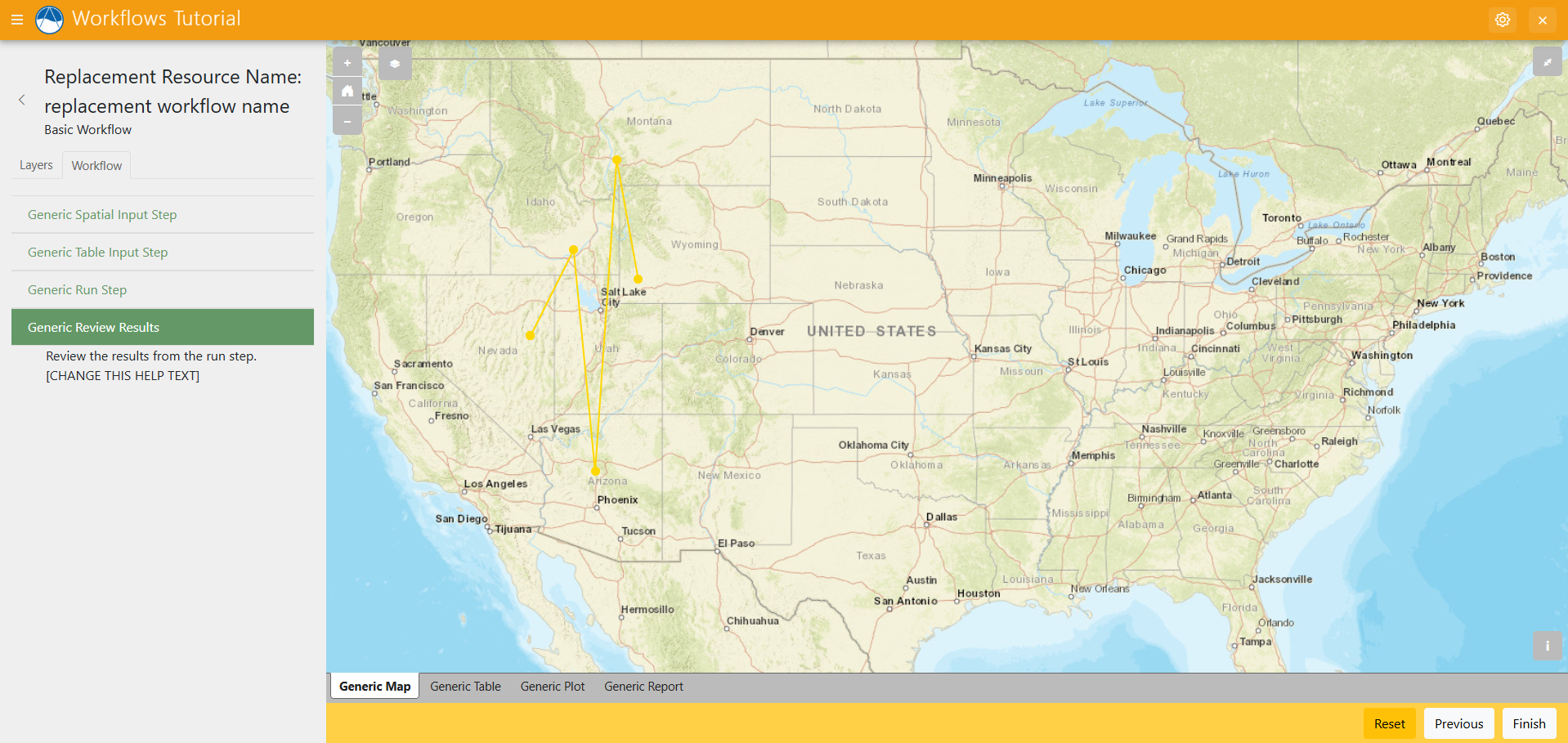
The result step here uses all four kinds of results offered in the Workflows Extension. You can review the results from the job that were run, along with generate a report on those results with notes that you can add right inside your Tethys application.
For more information on these results that you can use in workflows, check out the results documentation:Workfllow Results Documentation
Solution
This concludes the Add Results Steps portion of the Tethys Workflows Extension Tutorial. You can view the solution on GitHub at https://github.com/Aquaveo/tethysapp-workflows_tutorial or clone it as follows:
git clone https://github.com/Aquaveo/tethysapp-workflows_tutorial.git
cd tethysapp-workflows_tutorial
git checkout -b results-step results-step-complete