Add Workflows Files
Start from Previous Solution
If you wish to use the previous solution as a starting point:
git clone https://github.com/Aquaveo/tethysapp-workflows_tutorial.git
cd tethysapp-workflows_tutorial
git checkout -b add-workflows-page-step add-workflows-page-step-complete
Add Utilities File
Next, create a new folder in your app directory called workflows. You'll store the code for your workflows here, but for now, add a file named utilities.py. This file will contain some utility functions that will be used by the workflows extension. Copy and paste this code into the new file:
import os
from datetime import datetime

import osgeo
from pyproj import datadir
import pytz
import timezonefinder


def get_gmt_offset(lat, long):
    """Gets the GMT offset for a given latitude and longitude.

    Args:
        lat (float): Lattitude.
        long (float): Longitude

    Returns:
        gmt (float): The GMT offset in hours.
    """
    tf = timezonefinder.TimezoneFinder()
    timezone_str = tf.certain_timezone_at(lat=lat, lng=long)
    timezone = pytz.timezone(timezone_str)
    dt = datetime.now(timezone)
    return dt.utcoffset().total_seconds() / 3600


def safe_str(s):
    s_safe = "".join([c for c in s if c.isalpha() or c.isdigit() or c == ' ']).rstrip()
    s_safe = s_safe.replace(' ', '_')
    return s_safe


def get_condor_fdb_root(debug=False):
    """This function should only be called in an app-available environment (don't call in job scripts)."""
    # Use CONDOR_FDB_ROOT_DIR if set, otherwise use FDB_ROOT_DIR
    dir = os.environ.get('CONDOR_FDB_ROOT_DIR', os.environ.get('FDB_ROOT_DIR', None))
    if not dir:
        raise RuntimeError('CONDOR_FDB_ROOT_DIR and FDB_ROOT_DIR environment variables not set.')
    return dir


def get_condor_proj_dir(debug=False):
    """This function should only be called in an app-available environment (don't call in job scripts)."""
    CONTAINER_PROJ_DIR = '/var/lib/condor/micromamba/envs/tethys/share/proj'

    # If in debug mode, use the local proj lib as fallback, otherwise use the container proj as fallback
    if debug:
        fallback = datadir.get_data_dir()
    else:
        fallback = CONTAINER_PROJ_DIR

    dir = os.environ.get('CONDOR_PROJ_LIB', fallback)
    return {'PROJ_DATA': dir, 'PROJ_DEBUG': '3'}


def get_gdal_data_dirs(debug=False):
    """This function should only be called in an app-available environment (don't call in job scripts)."""
    CONTAINER_CONDA_PREFIX = '/var/lib/condor/micromamba/envs/tethys'
    CONTAINER_GDAL_DIR = 'share/gdal'
    CONTAINER_GDAL_PLUGINS = 'lib/python3.1/site-packages/osgeo/gdalplugins'

    if debug:
        gdal_path = os.path.dirname(osgeo.__file__)
        conda_prefix = os.environ.get('CONDA_PREFIX')
        gdal_driver_path = os.path.join(gdal_path, 'gdalplugins')
        gdal_data_path = os.path.join(conda_prefix, 'share', 'gdal')
    else:
        conda_prefix = '/var/lib/condor/micromamba/envs/tethys'
        gdal_data_path = os.path.join(CONTAINER_CONDA_PREFIX, CONTAINER_GDAL_DIR)
        gdal_driver_path = os.path.join(CONTAINER_CONDA_PREFIX, CONTAINER_GDAL_PLUGINS)

    gdal_data_path = os.environ.get('CONDOR_GDAL_DATA', gdal_data_path)
    gdal_driver_path = os.environ.get('CONDOR_GDAL_DRIVER_PATH', gdal_driver_path)

    return {'GDAL_DATA': gdal_data_path, 'GDAL_DRIVER_PATH': gdal_driver_path}


def get_geoserver_ports(debug=False):
    return os.environ.get('GEOSERVER_CLUSTER_PORTS')


def get_condor_env():
    """Build the condor environment variables string. This function should only be called in an app-available environment (don't call in job scripts)."""  # noqa: E501
    from django.conf import settings
    debug = settings.DEBUG
    job_env = {
        'FDB_ROOT_DIR': get_condor_fdb_root(debug),
        'GEOSERVER_CLUSTER_PORTS': get_geoserver_ports(debug),
    }
    job_env.update(get_gdal_data_dirs(debug))
    job_env.update(get_condor_proj_dir(debug))
    job_env_str = ';'.join([f'{k}={v}' for k, v in job_env.items()])
    return job_env_str
As part of the this step, you'll need to set up a fdb_root_dir/condor_fdb_root_dir environment variable.
If you are using Windows, run this command in either a command prompt or windows powershell session:
setx FDB_ROOT_DIR "C:\fdbs"
If you are using Linux or Mac, run these commands:
echo 'export CONDOR_FDB_ROOT_DIR=/fdbs' >> ~/.bashrc
source ~/.bashrc
This environment variable will be needed when running condor jobs later.
Add the Workflow Base
For this tutorial, we'll create a base class for any workflows you create for now. Begin by creating a new file called workflow_base.py inside your workflows folder.
Add this code to your new file:
from tethysext.workflows.models import TethysWorkflow


class WorkflowBase(TethysWorkflow):
    """
    Base class for workflows.
    """
    __abstract__ = True

    def get_url_name(self):
        from ..app import App as app
        return f'{app().url_namespace}:{self.TYPE}_workflow'
Add a New Workflow
Create a new file called __init__.py inside the workflows directory, along with a new folder called basic_workflow.
Inside the basic_workflow folder, create a new file named __init__.py. This file will contain the code for the workflow and its steps.
Add the following code to this new __init__.py file:
from ..workflow_base import WorkflowBase

class BasicWorkflow(WorkflowBase):
    """
    Run a basic workflow.
    """
    TYPE = 'basic_workflow'
    DISPLAY_TYPE_SINGULAR = 'Basic Workflow'
    DISPLAY_TYPE_PLURAL = 'Basic Workflows'
Next, update your controllers.py file with these lines of code:
from.workflows import WORKFLOW_OPTIONS
@controller(name="home", url="home")
class WorkflowLayoutController(WorkflowLayout):
    app = App
    base_template = 'workflows_tutorial/base.html'

    def __init__(self):
        super().__init__(SpatialManager, MapManager, App.DATABASE_NAME)
    def get_workflow_types(cls, request=None, context=None):
        return WORKFLOW_OPTIONS
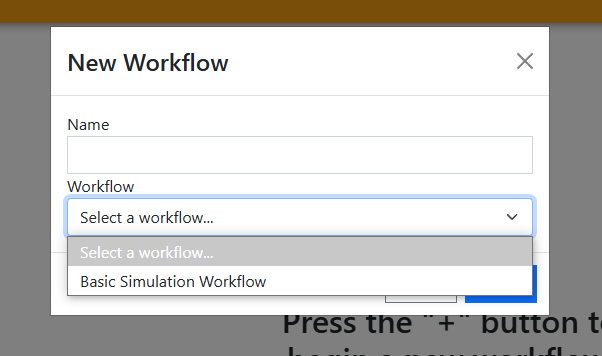
Now, return to your app and refresh it in the browser. After pressing the blue + button in the bottom right corner, a form should pop up. Now, if you select the workflow dropdown, you should see this:
Adding Initialization
Next, you'll be creating a new instance of your Basic Workflow. Start by adding the following code to your app.py file:
from tethys_sdk.base import TethysAppBase, url_map_maker
from tethys_sdk.app_settings import PersistentStoreDatabaseSetting, SpatialDatasetServiceSetting, SchedulerSetting

class App(TethysAppBase):
...
def register_url_maps(self):
    """
    Add controllers
    """
    from tethysext.workflows.controllers.workflows.workflow_router import WorkflowRouter
    from tethysext.workflows.urls import workflows
    from .workflows import BasicWorkflow

    UrlMap = url_map_maker(self.root_url)
    url_maps = super().register_url_maps(set_index=False)

    url_maps.extend(
        workflows.urls(
            url_map_maker=UrlMap,
            app=self,
            persistent_store_name=self.DATABASE_NAME,
            workflow_pairs=(
                (BasicWorkflow, WorkflowRouter),
            ),
            base_template='workflows_tutorial/base.html',
        )
    )
    return url_maps
Next, we'll need to update our workflow class's code:
    class BasicWorkflow(WorkflowBase):
        ...

        __mapper_args__ = {'polymorphic_identity': TYPE}

        @classmethod
        def new(cls, app, name, creator_id, description, creator_name, geoserver_name, map_manager, spatial_manager, **kwargs):
            """
            Factor class method that creates a new workflow with steps
            Args:
                app(TethysApp): The TethysApp hosting this workflow (e.g. Agwa).
                name(str): Name for this instance of the workflow.
                creator_id(str): Username of the user that created the workflow.
                description(str): Description of the workflow.
                creator_name(str): Username of the creator of the workflow.
                geoserver_name(str): Name of the SpatialDatasetServiceSetting pointing at the GeoServer to use for steps with MapViews.
                map_manager(MapManagerBase): The MapManager to use for the steps with MapViews.
                spatial_manager(SpatialManager): The SpatialManager to use for the steps with MapViews.
                kwargs: additional arguments to use when configuring workflows.

            Returns:
                Workflow: the new workflow.
            """
            # Create new workflow instance
            workflow = cls(name=name, description=description, creator_id=creator_id, creator_name=creator_name)

            return workflow
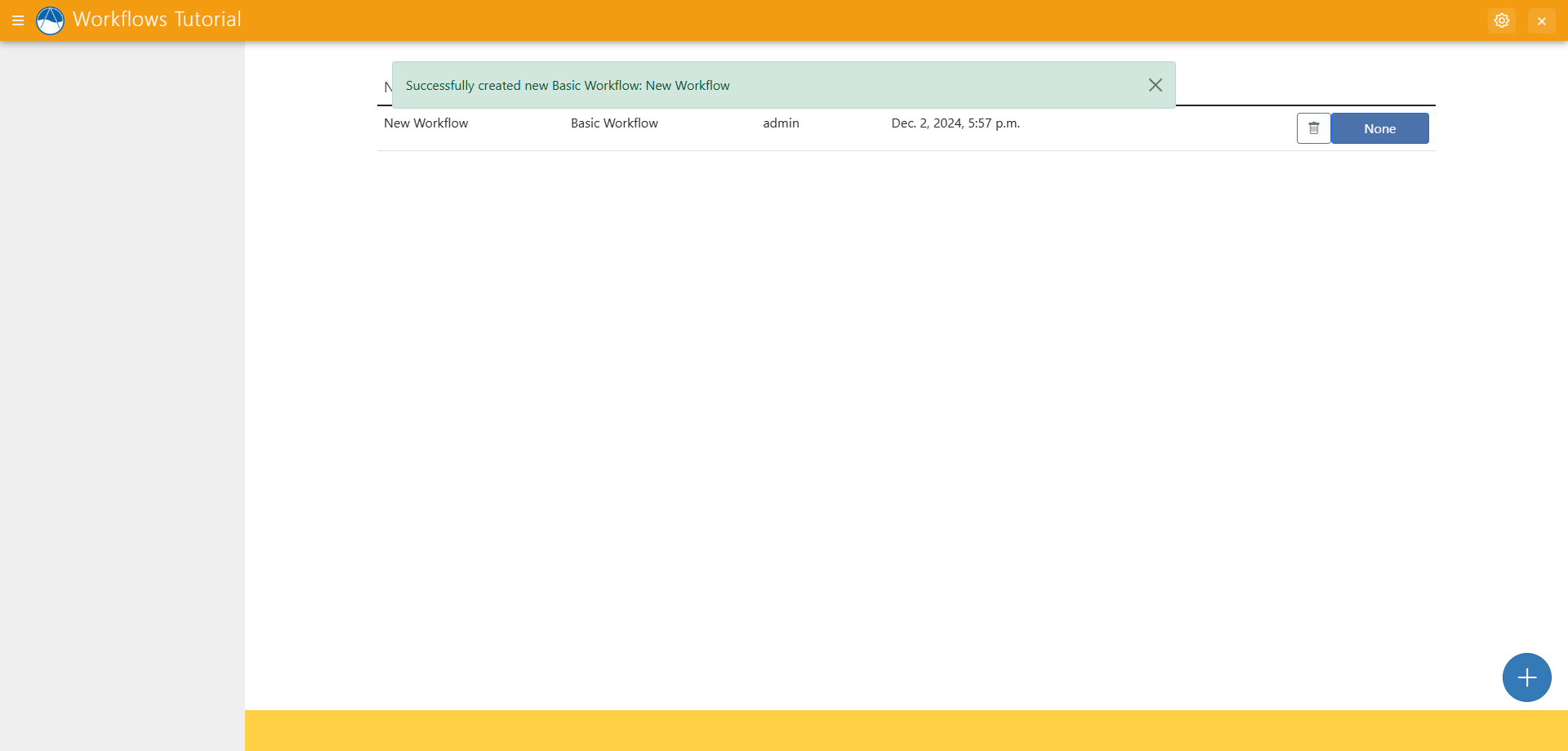
Now, refresh your application in the browser and click on the blue plus sign button, enter a name for your new workflow, and selecting "Basic Workflow" for your workflow type, and finally press "Create".
You should see something similar to this:
Solution
This concludes the Add Workflows Files portion of the Tethys Workflows Extension Tutorial. You can view the solution on GitHub at https://github.com/Aquaveo/tethysapp-workflows_tutorial or clone it as follows:
git clone https://github.com/Aquaveo/tethysapp-workflows_tutorial.git
cd tethysapp-workflows_tutorial
git checkout -b add-workflows-files-step add-workflows-files-step-complete